
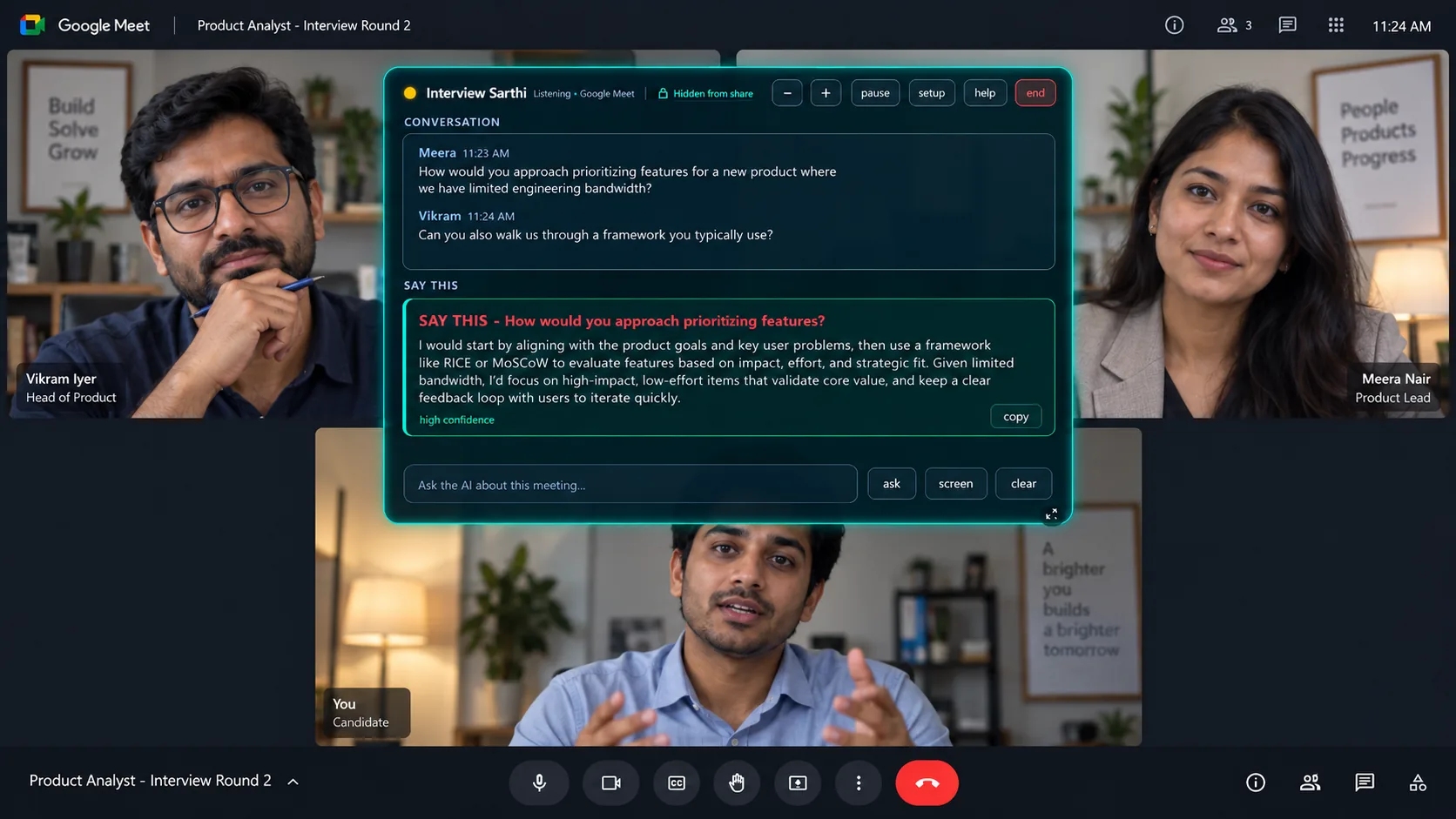
Before you join the Meet call
- A Windows 10 computer running version 2004 or later, or Windows 11.
- Live Sarthi installed from the Microsoft Store, with your Gemini key tested in setup.
- Your resume saved in Live. Add the target job description and your own examples if you have them.
- A working internet connection, microphone and audio output. Wired earphones are a useful starting point.
For the install-to-first-answer walkthrough, see how the Live interview copilot works. Before using assistance in an employer’s call, check its interview rules.
1. Check Google Meet’s microphone and speaker
Open your Meet link and use its pre-join audio check. Select the microphone you will speak into and the speaker or earphones you will hear the interviewer through. Test both before joining.
Live needs to capture the output carrying the interviewer’s voice. Make sure Live’s audio setup matches the device you are using for the call. If you change devices after starting, test again.
Join normally for a conversation. Google’s documentation says that joining through Present before the call opens Companion mode, which does not provide microphone or speaker audio. See Google’s audio checks and presentation guidance.
2. Test a question with another participant
Start a Meet call with a friend
Have them join from a separate device. Check that you can hear their voice clearly and that they can hear yours.
Start Live Sarthi and ask a project question
Ask your friend to say, “Tell me about the project on your CV. What was your contribution?” Let them finish the question, then check the transcript and suggested answer.
Check the answer against your resume
Verify the project name, tools and your responsibility. Ask a follow-up about a problem you solved. The resume and job-description guide shows how to supply that context.
Speak in your own words
The assistant shows text; your microphone carries your spoken answer to Meet. Test English, Hindi or Hinglish according to the interview you expect.
This practice call checks your setup. It does not establish performance on every computer or predict an interview outcome.
If the Google Meet interview assistant hears nothing
You cannot hear your friend
Fix the Meet speaker selection first. Live cannot receive the intended output if the call itself is silent on that device.
You hear them, but Live has no transcript
Review Live’s selected output device. If you switched to a headset or a monitor’s speakers, check the audio configuration again. Try wired earphones or the laptop audio before adding Bluetooth routing.
The question is transcribed, but no answer appears
Check your Gemini key test, connection, provider quota and remaining trial or pass access. A paid Live pass provides software access; it does not increase Google’s API limits.
A suggestion stops halfway
Let the question finish and allow the answer to complete. If the connection stops, use Live’s reconnect control. The help page covers reconnecting and interrupted answers.
Google also has audio and video troubleshooting. Its meeting settings and Live’s capture settings serve different purposes, so check both.
Try it free, then choose a one-time pass
Live Sarthi includes 30 minutes free per computer. In India, paid access is ₹99 for 2 days on one device or ₹299 for 30 days on two devices, with unlimited software sessions during validity and no automatic renewal. Google’s quotas and any paid AI usage are separate.
Outside India, see the $9.99 / 2-day and $29.99 / 30-day passes. For a price comparison with other interview copilots, read Live Sarthi vs Final Round AI or Live Sarthi vs Parakeet AI.
Run your first Meet practice call
Use the 30-minute free trial to check audio and answer relevance on the Windows computer you will use.
Sources checked 14 October 2026: Live product facts, the app’s maintained setup and Google’s linked Meet help pages. Google Meet is a Google product; Live Sarthi is independently developed.