
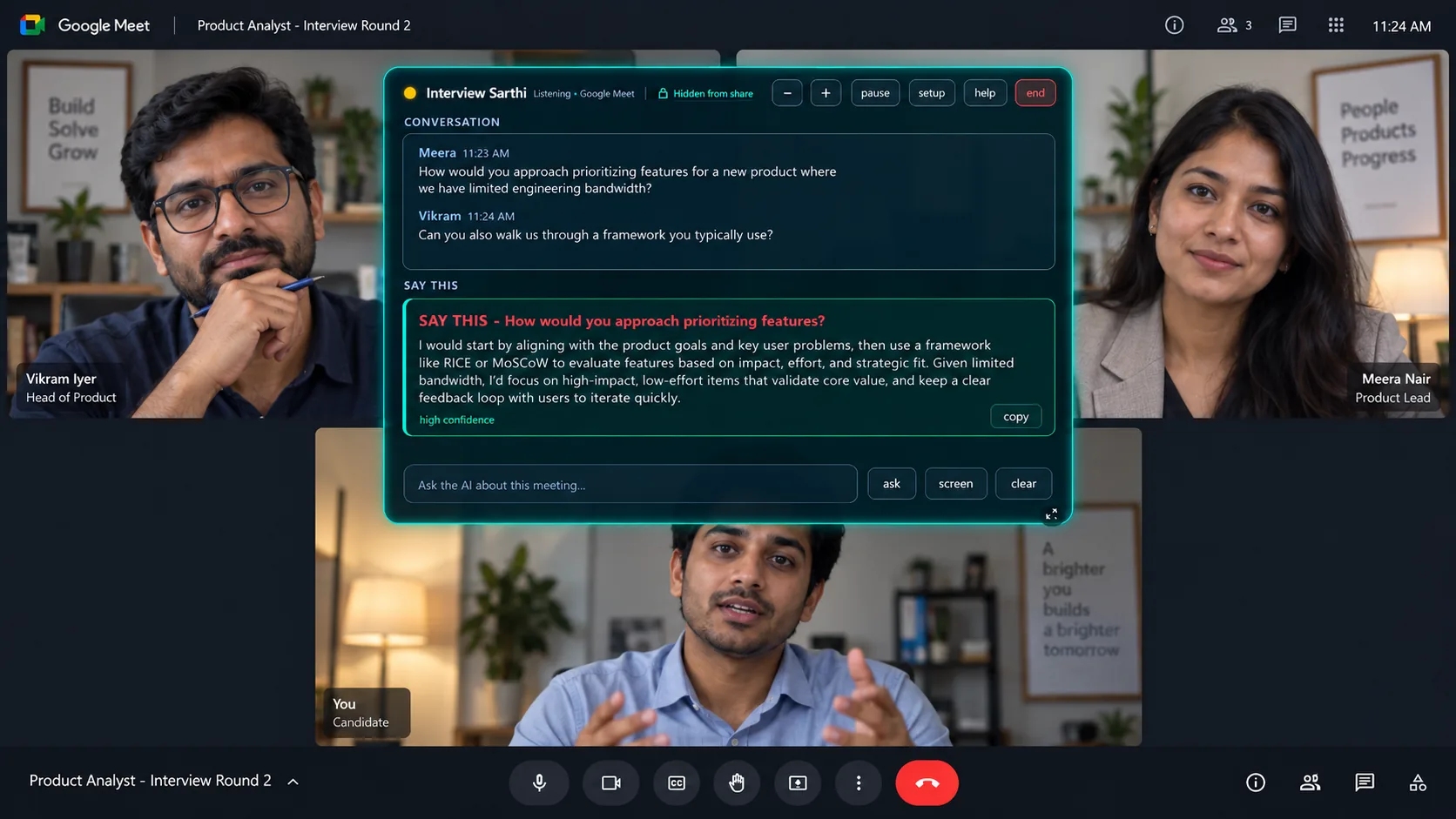
What happens between a question and an answer?
The interviewer’s audio reaches your computer
Keep your meeting in Google Meet, Zoom or Teams. Live captures the computer’s output audio; no Sarthi bot joins the call. Your microphone is still used by the meeting so the other person can hear you.
The question appears in the conversation
The live transcript lets you check what the app heard. For a question with several parts, look at the full wording before using the answer. Names, numbers and technical terms can need correction.
A suggestion uses your resume and context
The app drafts a spoken-style answer. Your CV supplies your experience; an optional job description supplies the target role; your own examples supply real stories. See a worked resume-based answer.
You choose what to say
Live shows text and does not speak into the meeting. Use details you can explain in your own words. Answer timing varies with the connection, model and question; the product’s advertised response start is about 1.5 seconds.
A live interview assistant supports a call with another person. To have an AI interviewer ask you questions and score your practice, use the separate Prep Sarthi app.
Set up your interview copilot on Windows
Install Live Sarthi
Open the Microsoft Store listing on your Windows computer. The desktop app is also called Interview Sarthi. For the direct installer, follow the existing installation walkthrough.
Add and test your Gemini key
Follow the Gemini API key guide. Paste your key into setup and press Test. The key powers the AI; provider quotas and any paid Google usage are separate from a Live pass.
Choose your resume and add the target job
Use Choose resume… for your CV. In Job description for this interview (optional), paste the responsibilities and requirements. In Your own examples (optional), add a paragraph per real story. Save your setup before starting. If Live is already open, a new resume, job description or examples load into the running session by themselves; after changing your Gemini key or audio devices, answer Yes when it asks to restart Interview Sarthi.
Start a practice call
Use wired earphones or your laptop’s audio and microphone. Ask a friend to join the call and ask about your project. Check that you hear them and that Live transcribes their question. The Google Meet setup guide explains this check in detail.
A useful first test: your project and one follow-up
Ask your friend, “What did you personally build in this project?” Check whether the suggestion names your own contribution. Then ask, “What went wrong, and how did you debug it?” Your optional examples can supply details that do not fit into a short resume.
If an answer contains a result you cannot support, leave it out and improve the context in setup. A polished sentence is useful only when it describes your work accurately. English, Hindi and Hinglish are supported; include the language you expect in your practice call.
The panel stays hidden from supported Windows screen sharing. Test what the other participant receives on your actual setup using the screen-sharing guide. Use assistance within your interview’s rules.
Unlimited sessions for the days you need
The trial gives you 30 minutes free per computer. Paid Live passes have no software session or hour cap during their validity: ₹99 for 2 days on one device or ₹299 for 30 days on two devices in India. Pay once; the pass ends without automatic renewal.
Outside India, passes are $9.99 for 2 days or $29.99 for 30 days. See international plans. Unlimited software access does not remove Google’s API quotas or any Google charges.
Comparing an interview copilot’s price? Check the upfront payment, billing period and included live access. Read our Final Round AI alternative comparison and Parakeet AI alternative comparison for dated official sources.
Before you start
Does Live Sarthi work on a Mac or phone?
Live is a Windows desktop app. You can read this guide on any device; you need a supported Windows computer to use Live. Browser-based Prep Sarthi is available for interview practice.
Where does my interview information go?
Interview audio, CV context and the information you paste in setup are sent from your PC to Google using your key. Transcripts are stored locally; licensing and purchase records are handled by our services. Read the privacy details.
What if the app hears nothing?
First check that you can hear the other person through the selected output device. Then review Live’s audio setup. For missing audio, reconnecting and interrupted answers, use Live troubleshooting.
See the workflow on your own computer
Install Live Sarthi, add your CV and run one practice call. The first 30 minutes are free, with no card or Sarthi signup.
Written by the team that builds Live Sarthi. Reviewed 14 October 2026 against the app’s maintained setup and the product facts. This walkthrough is not a timed benchmark.